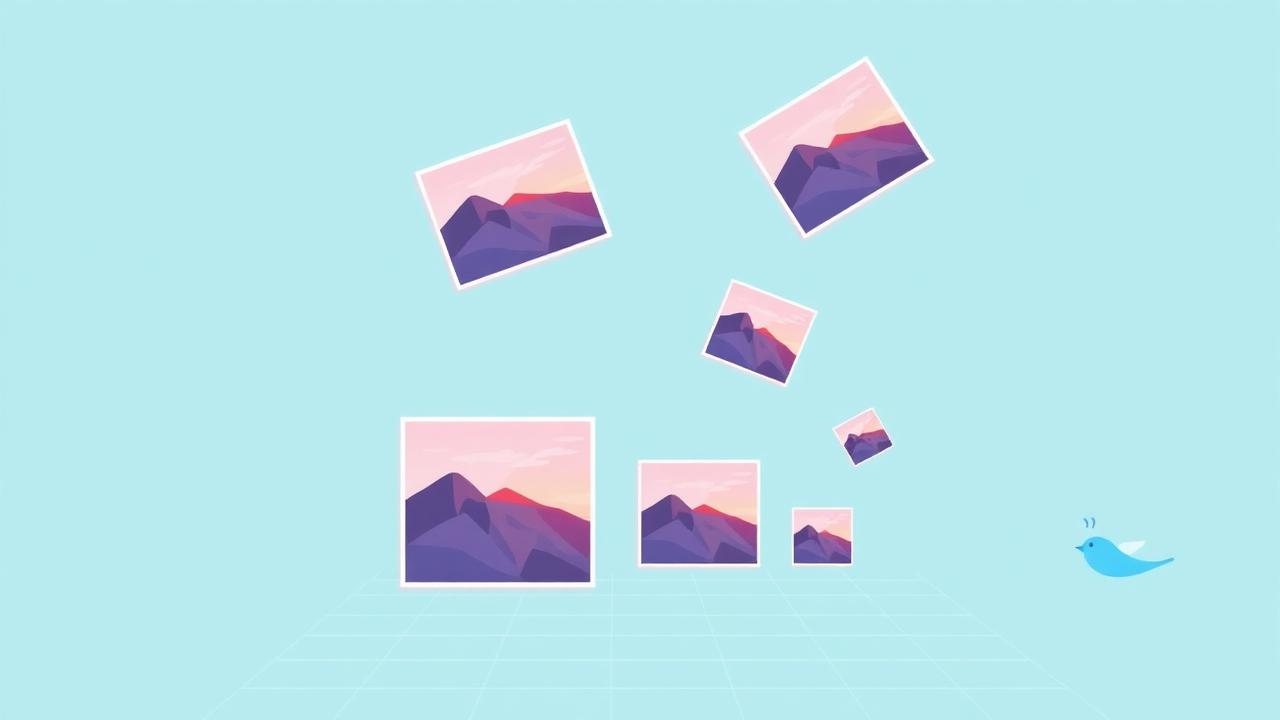
Every product designer has had this conversation. 'Hey, that screenshot in the deck looks a bit soft?' Yes. Yes it does. Because the screenshot was taken on a Retina display, dropped into a tool that resized it once, and shown on a projector that resized it again. Somewhere in that chain, half the pixels got thrown away.
Screenshot blur is almost never about camera quality — screenshots don't have cameras. It's about pixel density and something called DPR. Once you understand DPR, every fuzzy screenshot you've ever taken suddenly makes sense.
Your screen has two resolutions, not one
A modern MacBook display is 2560×1600 physical pixels. But when you open the display settings, macOS says the 'looks like' resolution is 1440×900. That number is the CSS resolution — how big things logically are. The real pixel grid is finer, and macOS uses the extra pixels to render text and lines smoother. This ratio (2560 ÷ 1440 = ~1.78, usually rounded to 2) is the Device Pixel Ratio, or DPR.
When you take a screenshot on that MacBook, the file is 2560×1600 pixels — the real resolution. When you paste it into a Google Doc that displays it at 'natural size', the Doc thinks it's a 2560-pixel-wide image and scales it down to fit the page. That scaling is the first place quality dies.
Why 'saving as JPEG' makes it worse
PowerPoint, Google Docs, Word and most chat apps auto-convert pasted screenshots to JPEG to save space. JPEG is a photo format — it's designed to throw away detail that eyes don't notice in photos. Screenshots aren't photos. They have hard edges, single-pixel lines, and solid colour blocks — exactly the things JPEG compresses badly.
A 1 MB PNG screenshot re-saved as a quality-70 JPEG becomes 200 KB and looks noticeably softer around text. Save it three times through a chat app (each app re-compressing) and you get the classic 'why does this look like it's from 2008?' effect.
The three-step fix for sharp screenshots
1. Take the screenshot at full resolution. macOS's Cmd-Shift-4 and Windows's Snipping Tool both save at your display's real pixel resolution — no downsizing at capture time. Don't use a browser extension that captures at 'viewport size' unless it explicitly does '2x' or 'device pixel ratio 2'.
2. Save as PNG, not JPEG. PNG is lossless — every pixel stays exact. For a UI screenshot, PNG is usually 40–60% larger than JPEG but visually perfect. If size matters, use WebP (lossless mode) which typically beats PNG by 20–30% without any quality loss.
3. Insert at the right display size. If your screenshot is 2560 wide and your document is 1280 wide, tell the document to display it at 1280 wide (not 100% and not stretched to 3000). This lets the renderer downscale cleanly instead of guessing.
The right resolution for the target
For a slide deck viewed on a laptop: 1920×1080 minimum, PNG. Anything less starts to look mushy when the presentation is fullscreen.
For a blog post at 800px column width: capture at 1600×whatever (2× the display width), save as PNG or lossless WebP. Modern browsers will pick the right size automatically if you provide a srcset.
For a bug report attached to a Jira ticket: capture at full resolution, save as PNG. Every pixel matters when the engineer is trying to see whether your button is 2px off or 20px off.
For a screenshot you'll email as an attachment: PNG if it's UI, JPEG quality 92 if it's a photo of your screen with a camera (yes, that happens — it's fine, just don't do it for UI).
A quick check anyone can run
Right-click any screenshot and check its pixel dimensions. If they roughly match your screen's real resolution (2560×1600 for a 14" MacBook, 3024×1964 for a 16" Pro, 1920×1080 for a typical Windows laptop), you're good. If the number is exactly your CSS resolution (like 1440×900 on that MacBook), something in your pipeline is downsizing at capture — usually a browser extension or a screen-recording tool set to 'medium quality'. Change the setting, take a new screenshot.
And when you're annotating a screenshot (adding arrows, blurring a name, highlighting a button), do it in a tool that keeps everything in the browser and exports as PNG. Every 'annotate my screenshot online' site that uploads to a server is a) slower and b) getting a copy of whatever's on your screen. Bank details, private chats, a colleague's face — all things you probably didn't mean to send to a random service.