You right-click an image, save it, and it lands on your desktop as photo.webp. Then you try to upload it to a government form, attach it to a WhatsApp message from your laptop, or open it in an older version of Photoshop — and something silently fails. WebP is not broken. It's just newer than every upload form built before 2019, and the whole world of file uploads takes a long time to catch up.
This is a straight-talk guide to WebP-to-JPG: how to do it well in a browser, why the loss is smaller than internet myths suggest, and the two situations where you should leave the WebP alone.
The one-tab flow
Open Bluebird's WebP to JPG converter. Drop your file — or drag a whole folder in, it batches automatically. Pick the JPEG quality (the default of 92 is right for almost everyone), click Convert, and download either a single JPEG or a ZIP of them.
Under the hood, the browser decodes each WebP into an in-memory ImageBitmap, paints it onto an offscreen canvas, and asks the browser to encode the canvas as JPEG. That's a handful of Web APIs — nothing that needs a server, nothing that needs a plugin. If you turn Wi-Fi off after the page loads, the whole tool still works. There is no upload, no telemetry, no watermark.
Why batches matter more than most tools admit
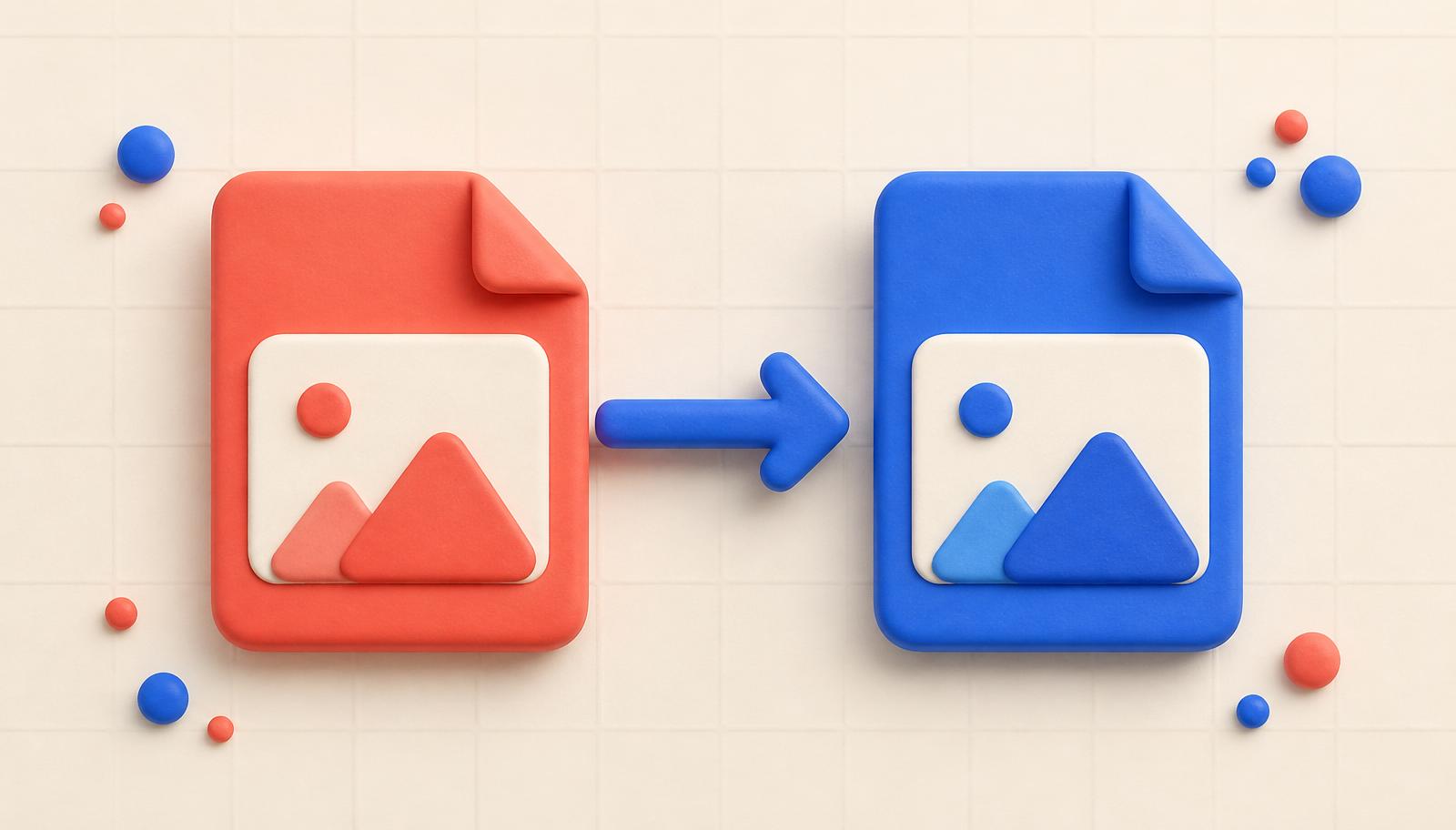
The real WebP-to-JPG problem isn't converting one file. It's converting the 47 photos your friend just AirDropped you, all of which arrived as WebP because macOS decided that was the modern move. Most online converters ask you to upload one file at a time; some let you upload three; a couple let you upload ten but rate-limit you halfway through.
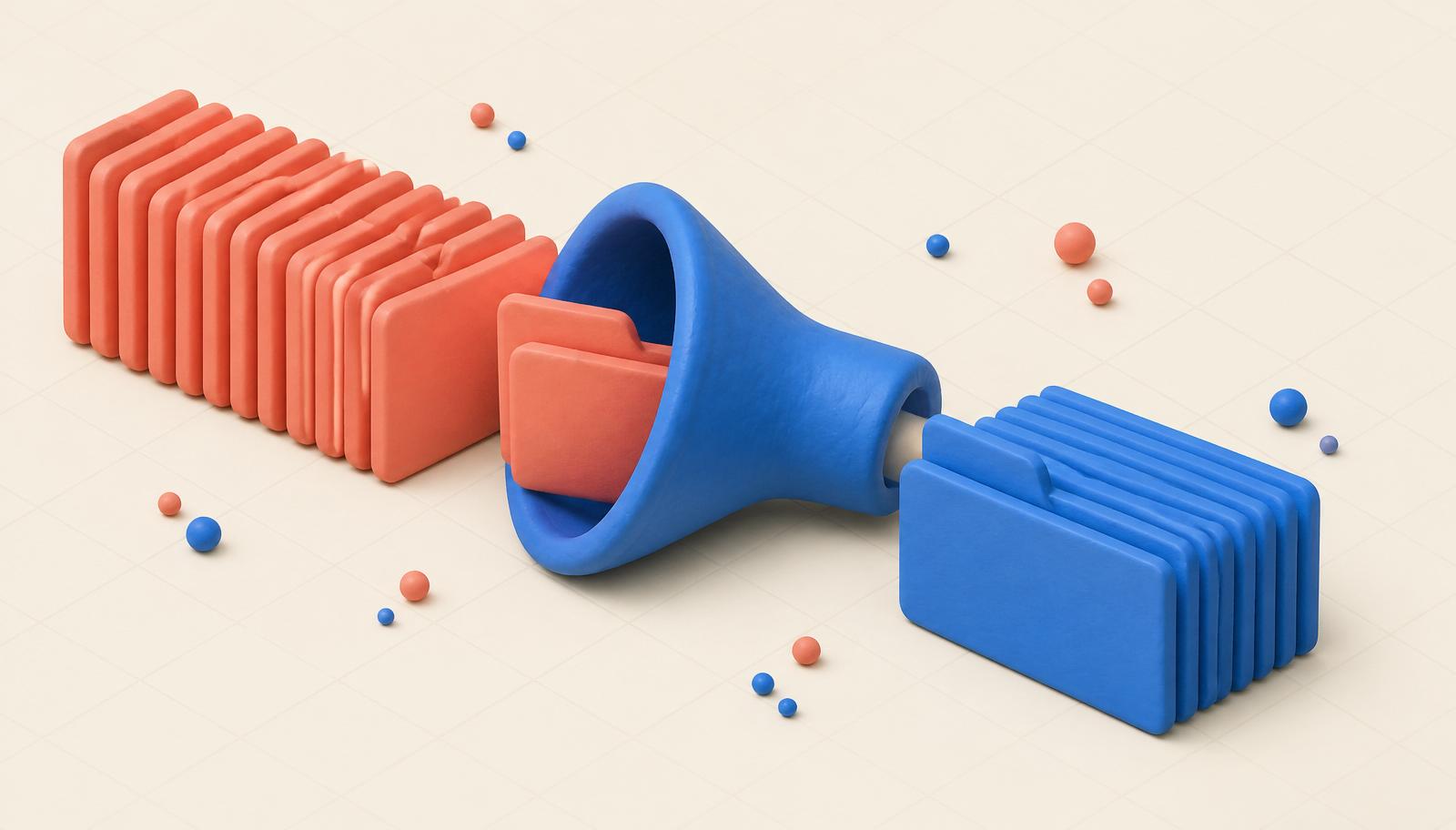
In-browser batches don't have that limit because there's no upload. Drag 200 WebPs into the drop zone; the tool processes them locally, in a small worker pool, and packages the results as a ZIP. On a mid-range laptop, 200 phone-sized WebPs convert to JPEG in under a minute.
The engineering trick is memory pressure: naive batch converters try to hold all 200 decoded bitmaps in RAM at once and OOM the tab. Bluebird's batcher runs them through a bounded queue and disposes each bitmap after encoding, so a 200-file conversion uses about as much RAM as a single-file one.
Where WebP still doesn't work — the compatibility matrix
This is the honest state of WebP support in mid-2026. Every modern browser since 2020: yes. macOS Preview since Big Sur (2020): yes. Windows Photos since a 2021 update: yes. iOS Photos since iOS 14: yes.
Where it still fails: almost every Indian government upload form (Aadhaar, PAN, DL, exam portals) checks the file's magic bytes and refuses anything that isn't image/jpeg. WhatsApp desktop sometimes shows a broken preview but sends fine — until the recipient is on a very old Android where the preview also breaks. Word 2016, PowerPoint 2016 and older versions of Photoshop can't open WebP without a plugin. Most email clients render it but some (looking at you, older Outlook) show it as an attachment.
The rule of thumb: if the destination is a modern website, keep the WebP. If the destination is an upload form, a piece of enterprise software, or a chat that goes to phones you don't control, convert to JPEG. Corner cases exist; that's where the checkmark matrix below actually helps.

The two cases you should absolutely keep the WebP
First: you are publishing the image to a website. WebP is 25–35% smaller than JPEG at the same visible quality, and every browser released after 2020 supports it. Your Largest Contentful Paint gets faster, your Core Web Vitals improve, and your CDN bill drops. Converting to JPEG here is a step backward.
Second: you are archiving screenshots or diagrams. WebP lossless is smaller than PNG lossless — usually 20-40% smaller — with zero visible loss. A folder of 500 screenshots stored as WebP takes noticeably less disk. If you never need to open them in old software, WebP is the right archive format.
In every other case — portals, printers, cross-device chat, importing into old apps — convert to JPEG at quality 90 or above. You lose almost nothing you can see and gain universal compatibility.
The quality-90 rule, briefly explained
Why 90? Because JPEG's quality-to-file-size curve is famously non-linear (we wrote a whole post on this with respect to compression targeting). Going from quality 100 to quality 90 typically halves the file size while introducing artefacts you can only see with your face against the screen. Going from 90 to 80 saves another 20-30% but starts to visibly soften edges. Below 80 you are trading visible detail for bytes.
For a WebP-to-JPG conversion where you're already accepting some loss (WebP → JPEG is a two-hop encoding), quality 90-92 is the sweet spot. It's what Bluebird uses by default, and it's what most style guides recommend for photographic content.
If you also need to hit a specific byte cap — the classic "convert this WebP to a 100 KB JPG for Aadhaar" combo — do the conversion first, then run the JPEG through Bluebird's size-target compressor. Two tools, twenty seconds, done.