The favicon is the smallest piece of design work on a website and, somehow, the piece most likely to go wrong. Sixteen by sixteen pixels of pure suffering. This post is a short guide to getting a favicon that shows up in every browser, every operating system, and on people's home screens when they save your site as an app.
If your site is missing its favicon, or shows the right one everywhere except Safari, this is your fix.
The nine files you actually need
A modern favicon is not one file. It's a small kit. Here's the minimum that covers every browser, every OS, and PWA installs:
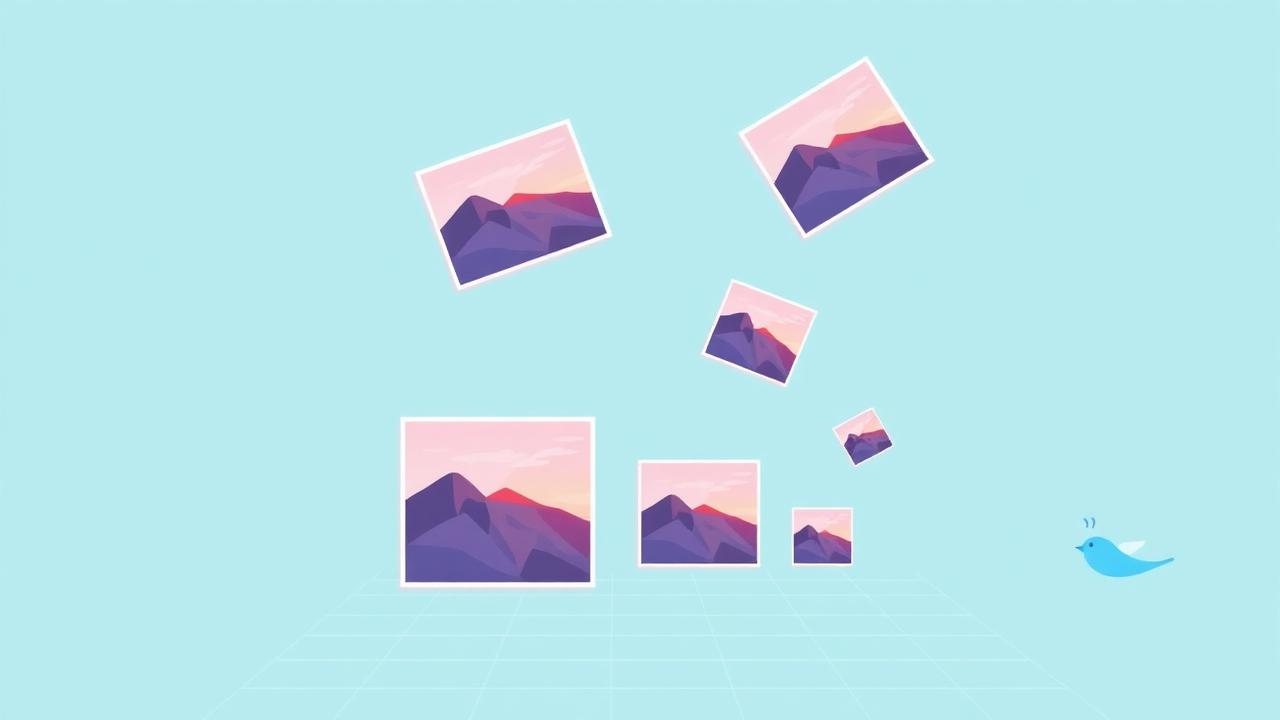
• favicon.ico — a 16×16 + 32×32 multi-size ICO for legacy browsers. • icon-192.png and icon-512.png — the standard PWA sizes for Android and Windows install prompts. • apple-touch-icon.png at 180×180 — required for iOS home screen icons. • A single SVG version — modern browsers prefer it for razor-sharp rendering. • A web manifest listing all the PNGs so the browser knows which to use where.
The Bluebird Favicon Generator builds all of these from one source image and gives you the exact <link> tags to paste into your <head>.
Why the icon at the top of this article is intentionally simple
The number one reason a favicon disappears isn't a broken tag — it's that the design is too detailed. A 16×16 canvas is 256 pixels total. That's less than the average emoji. Any text smaller than about 8pt turns to soup, any thin line gets swallowed by anti-aliasing, and any three-colour gradient just looks muddy.
The favicons that survive downscaling all follow the same rules: one bold shape, one or two colours, high contrast against both light and dark browser chrome. Think Twitter's bird, GitHub's cat, Slack's hashtag. Bluebird's bird. None of them have text.
Why yours might not be showing up
Four things go wrong more than everything else combined:
1. The browser cached the old one. Hard-refresh (Cmd/Ctrl+Shift+R), or add a version query: <link rel="icon" href="/favicon.ico?v=2">.
2. The path is wrong. Favicons must resolve at the URL you list. Open the URL directly in a new tab to check — you should see the image, not a 404 page.
3. Safari wants a specifically named apple-touch-icon.png at the site root. Even without a <link> tag, Safari will look for /apple-touch-icon.png. Put one there and stop debugging.
4. Your PWA manifest links to the wrong image sizes. Chrome DevTools → Application → Manifest will tell you exactly which one it couldn't load.
The two-minute checklist
1. Open the Favicon Generator, drop your logo or a 512×512 export from Figma.
2. Download the ZIP. It contains every file listed above, plus a manifest.
3. Drop the ZIP contents at the root of your site.
4. Paste the provided <link> tags into your site's <head>.
5. Hard-refresh, then open the tab in Safari, Firefox and Chrome to confirm. If one browser is missing the icon, the file it wants is in the ZIP — check the DevTools network tab to see which URL is 404-ing.