A friend recently sent me a folder of 400 photos from a family trip. Half were HEIC (from her iPhone), half were JPG (exported by her sister's Android), and none of them would open on her father's older Windows laptop. "Can you just... make them all normal?" she asked. Fair question. The answer is one 30-second conversion. But which format is "normal" depends entirely on what you're doing with them.
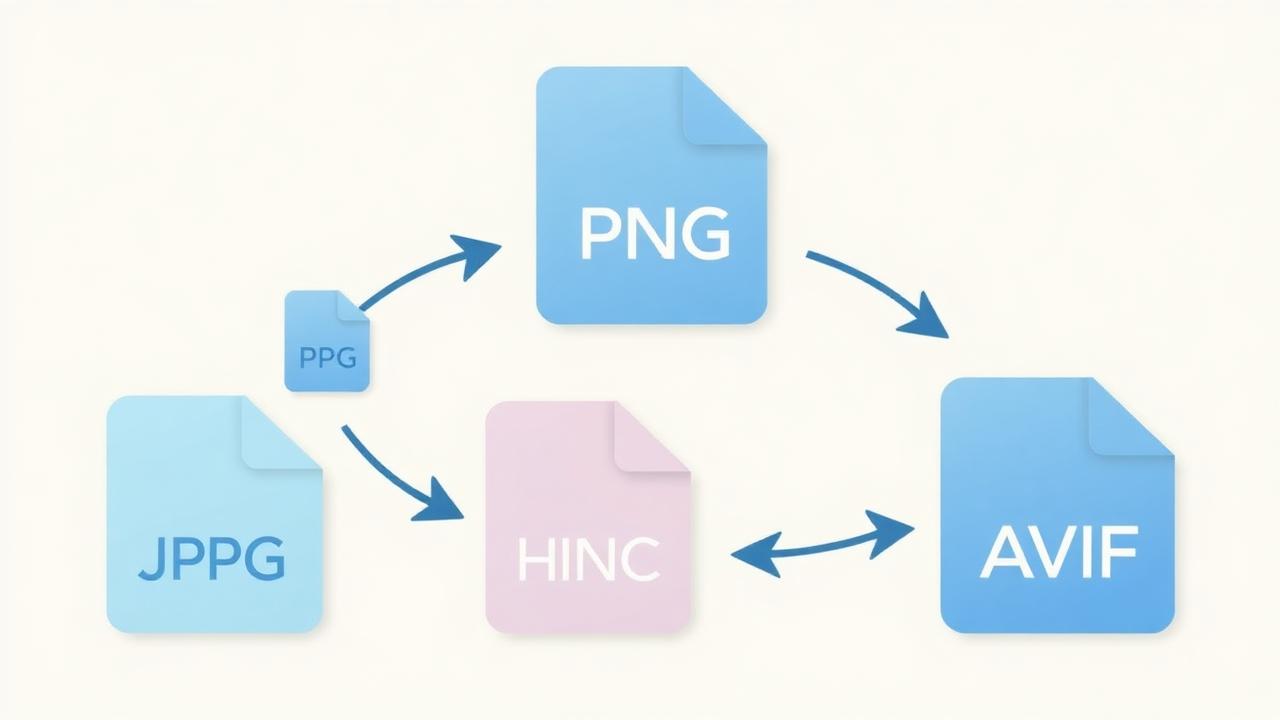
Here's the whole landscape in five formats, sorted by when you'd actually use each.
JPG (or JPEG) — the universal default
35 years old, understood by every device that has ever displayed an image. Great for photos. Terrible for anything with sharp text or hard edges (screenshots, logos, diagrams) — the compression smears them.
Use JPG when: you're sharing a photo with someone whose device you don't know, uploading to an old CMS, or archiving a photo for maximum long-term compatibility. Quality slider: 80 for the web, 90–95 for prints.
PNG — for anything with text, transparency, or hard edges
Lossless (nothing thrown away), supports transparency, handles sharp lines beautifully. But 3–10× the file size of a JPG for a typical photo — never use it for camera photos unless you truly need lossless.
Use PNG when: screenshots, logos, icons, UI mockups, anything you want to overlay on a coloured background, anything with a transparent area. Never for phone photos.
WEBP — the modern web default
Google's format from 2010. Roughly 25–35% smaller than JPG at the same quality, does lossless like PNG, and supports transparency and animation. Every browser has supported it since Safari joined the party in 2020.
Use WEBP when: publishing images on your own website, sending photos to someone on a modern device, or you want a good middle ground between size and quality. Not great for print (some old workflows still choke) and not universally supported by older messaging apps.
HEIC — what your iPhone secretly saves
Apple's default photo format since 2017. Files are roughly half the size of the equivalent JPG at visually identical quality. Amazing on Apple devices, still awkward everywhere else. Android has partial support; older Windows machines don't open it without extra software; email attachments often fail silently.
Rule of thumb: keep photos as HEIC on your own iPhone (halves your storage). Convert to JPG before sending them to anyone who isn't guaranteed to be on an Apple device.
AVIF — the future, cautiously
Newest of the bunch (2019, based on the AV1 video codec). Roughly 50% smaller than JPG at the same quality — the smallest files by a wide margin. Chrome, Firefox, Safari and Edge all support it. Encoding is slow, and it's not yet a good "send to grandma" format, but for your own website it's excellent.
Use AVIF when: you control the destination (your own website, your own storage) and you want the smallest possible file at great quality. Skip it for random sharing — assume support might not be there.
The one rule that saves your photos
Every conversion between lossy formats (JPG → WEBP → JPG again) loses a little quality. Every time. It's usually not noticeable in one pass, but by pass four your photos start looking soft and blocky. This is called generation loss and it's the digital equivalent of photocopying a photocopy.
Rule: always convert from the original. If you have a HEIC from your iPhone, convert it directly to JPG — don't take the WhatsApp-compressed copy and convert that. Keep the originals in one folder, converted copies in another, and never overwrite.
Doing it without uploading anything
Every online converter you'll find in a Google search uploads your photos to a server, converts them, and asks you to download them back. That's fine for a meme; less fine for the wedding photos you're re-sharing. Bluebird's Image Format Converter runs entirely in your browser: drop the file in, pick the format, download. The bytes never leave your device, and it works with your Wi-Fi off after the page loads.